
WooCommerce Plugin
Integrate Two's B2B payment solution into your WooCommerce store, allowing business customers to pay on invoice with flexible payment terms.
Prerequisites
Before you begin, ensure you have:
- WordPress with WooCommerce installed
- Admin access to your WordPress site
- At least one tax rate configured in WooCommerce
- Your Two API credentials
- Sign up at portal.two.inc
- You'll receive an email with your test API keys
- Once ready for production, you'll receive your live API keys
Installation
Choose one of the following installation methods:
Option 1: Install via WordPress Marketplace
- Navigate to Plugins → Add New in your WordPress admin
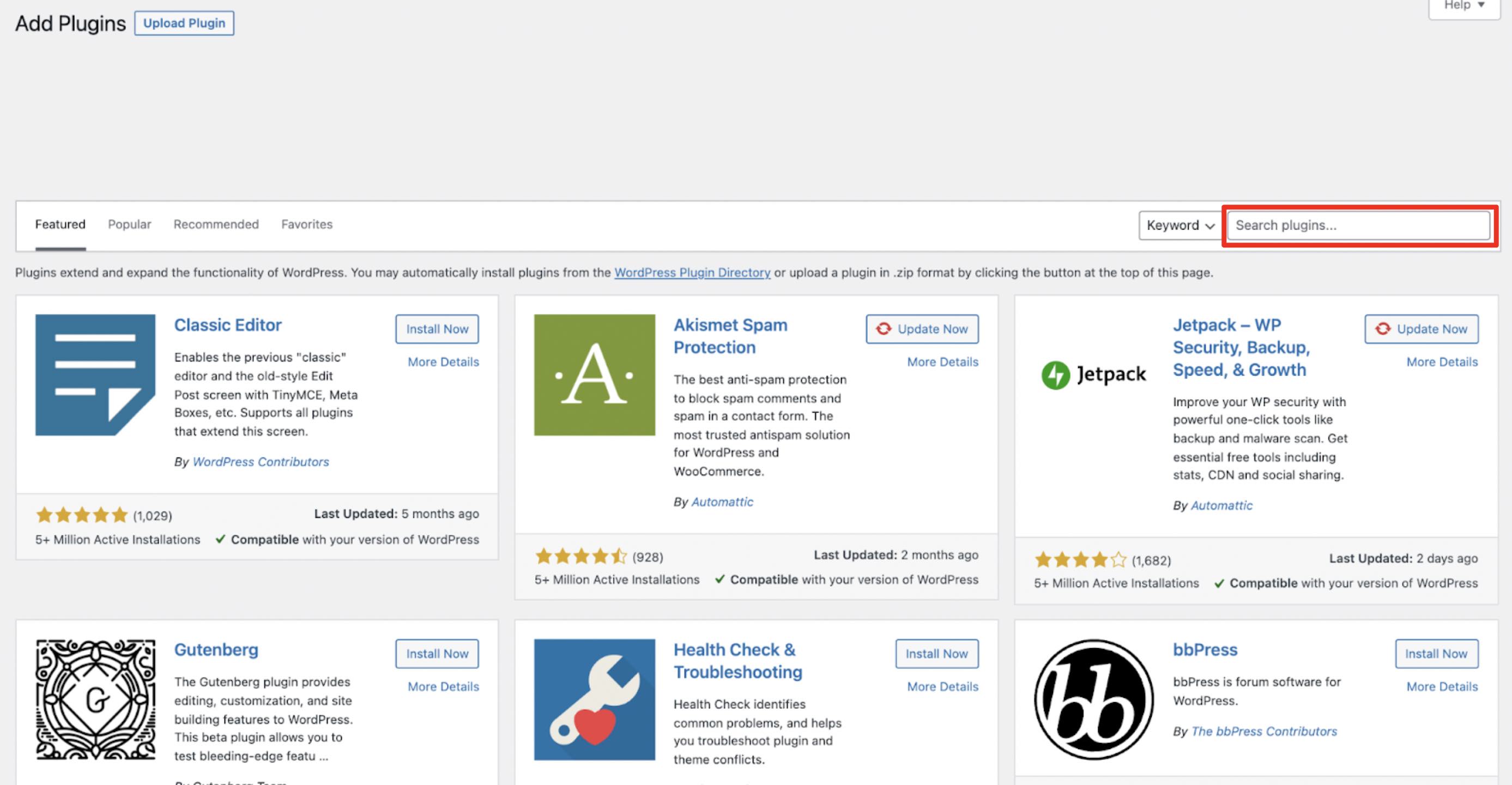
- Search for "two - bnpl"
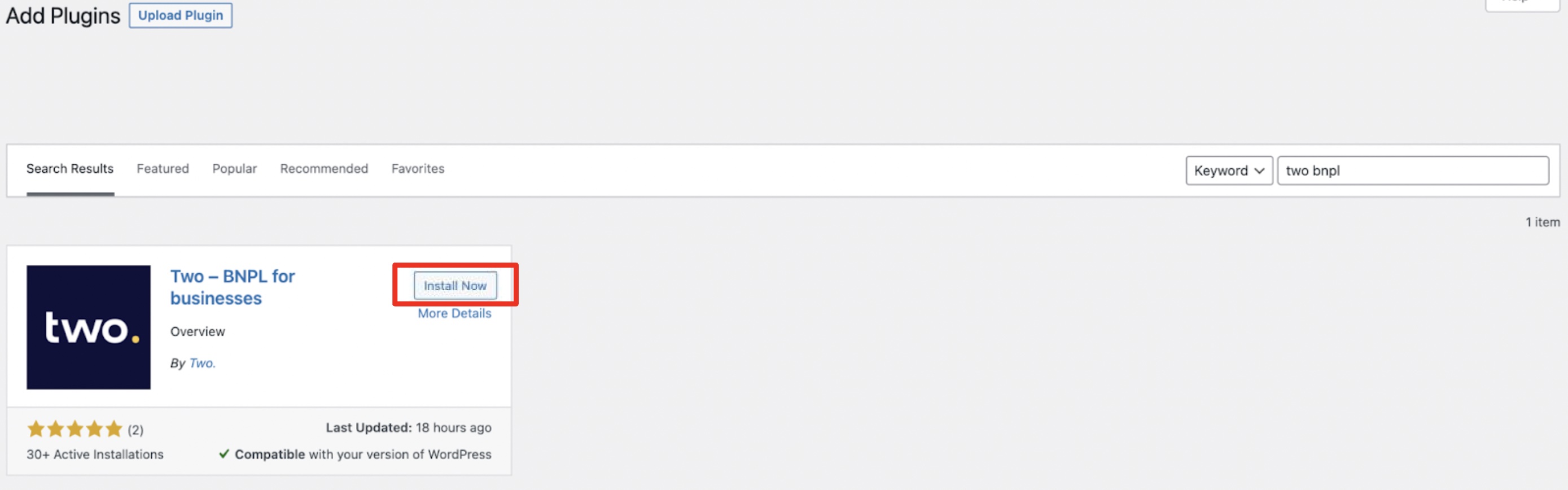
- Click Install Now
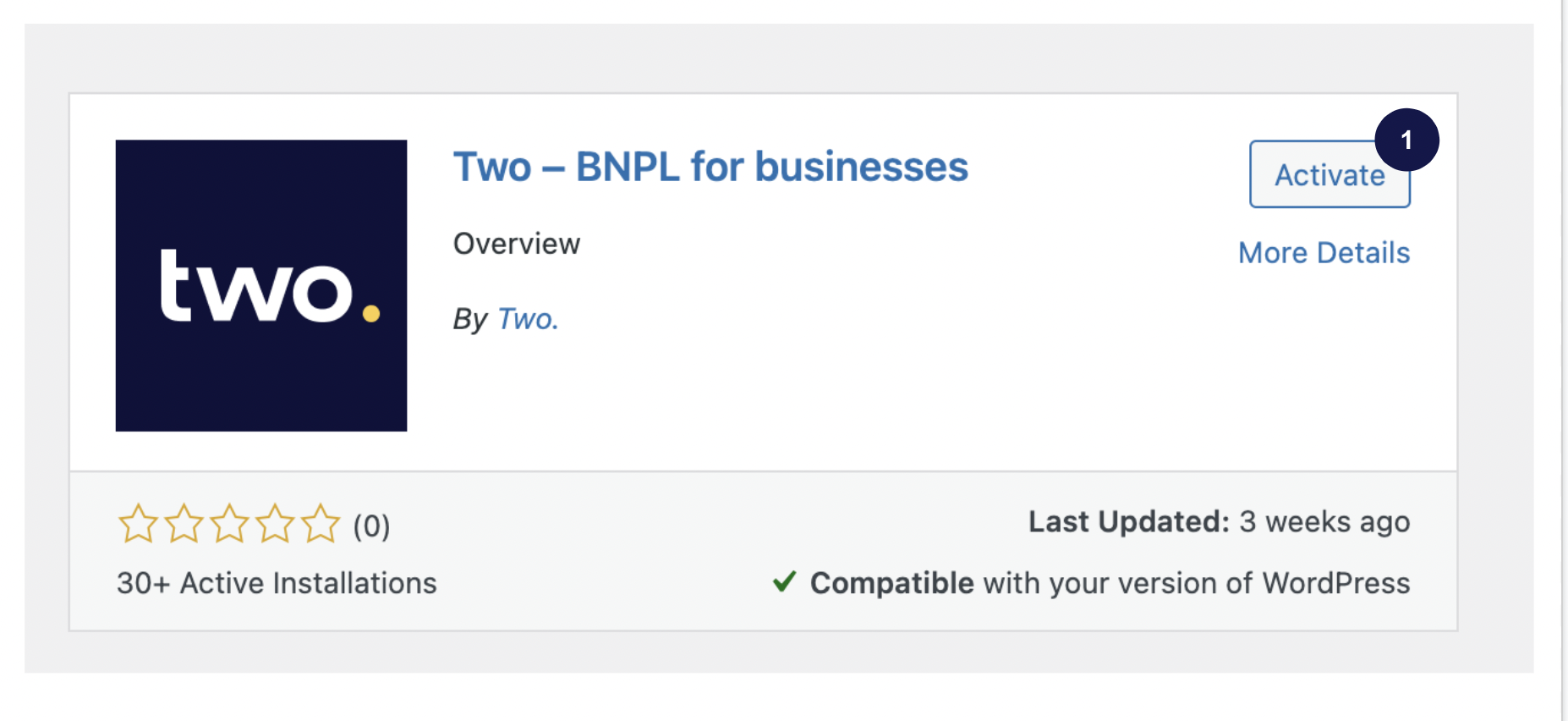
- Click Activate
Option 2: Install via ZIP File
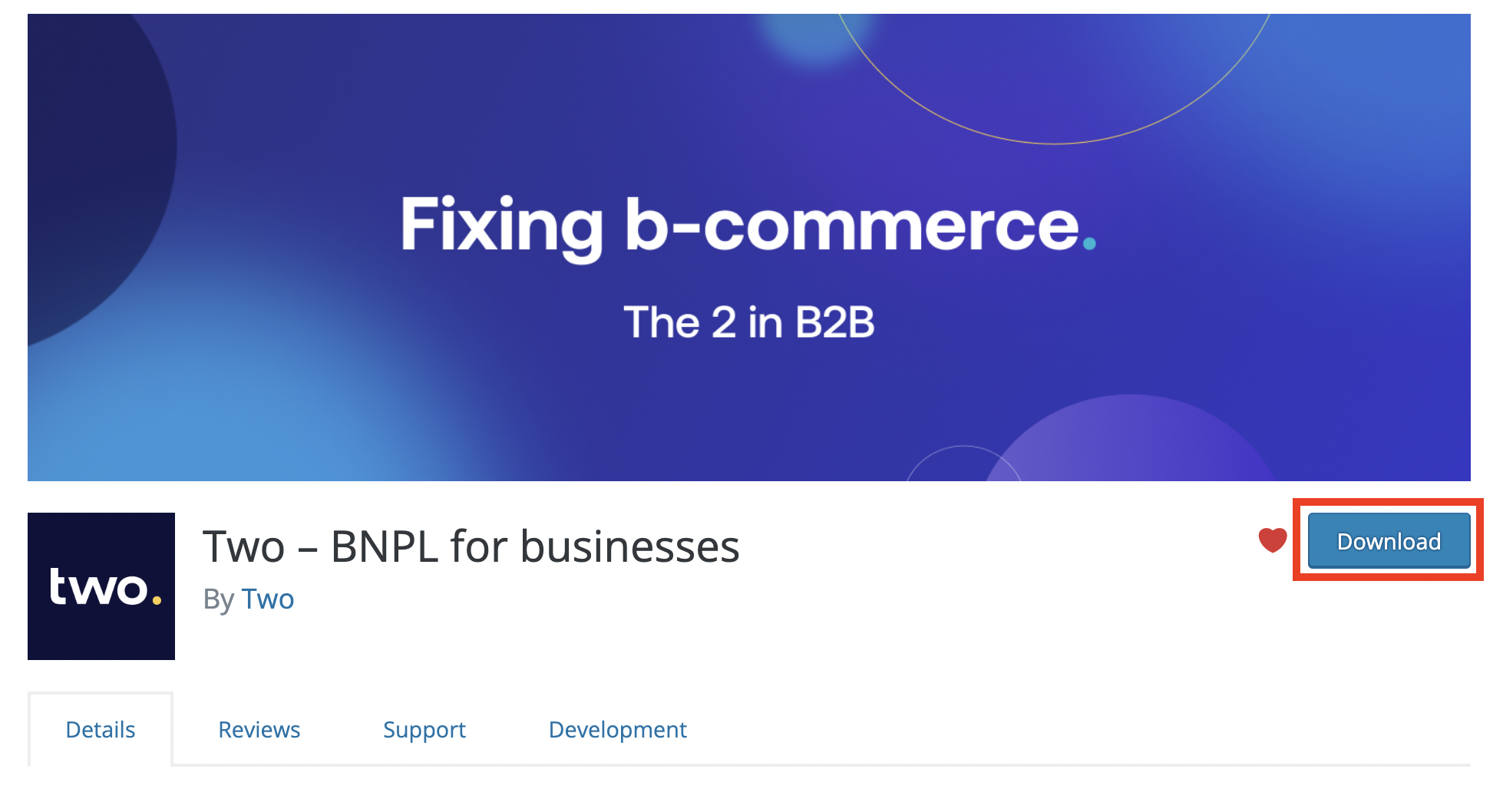
- Download the ZIP file from the WordPress Plugin Directory
- Navigate to Plugins → Add New in your WordPress admin
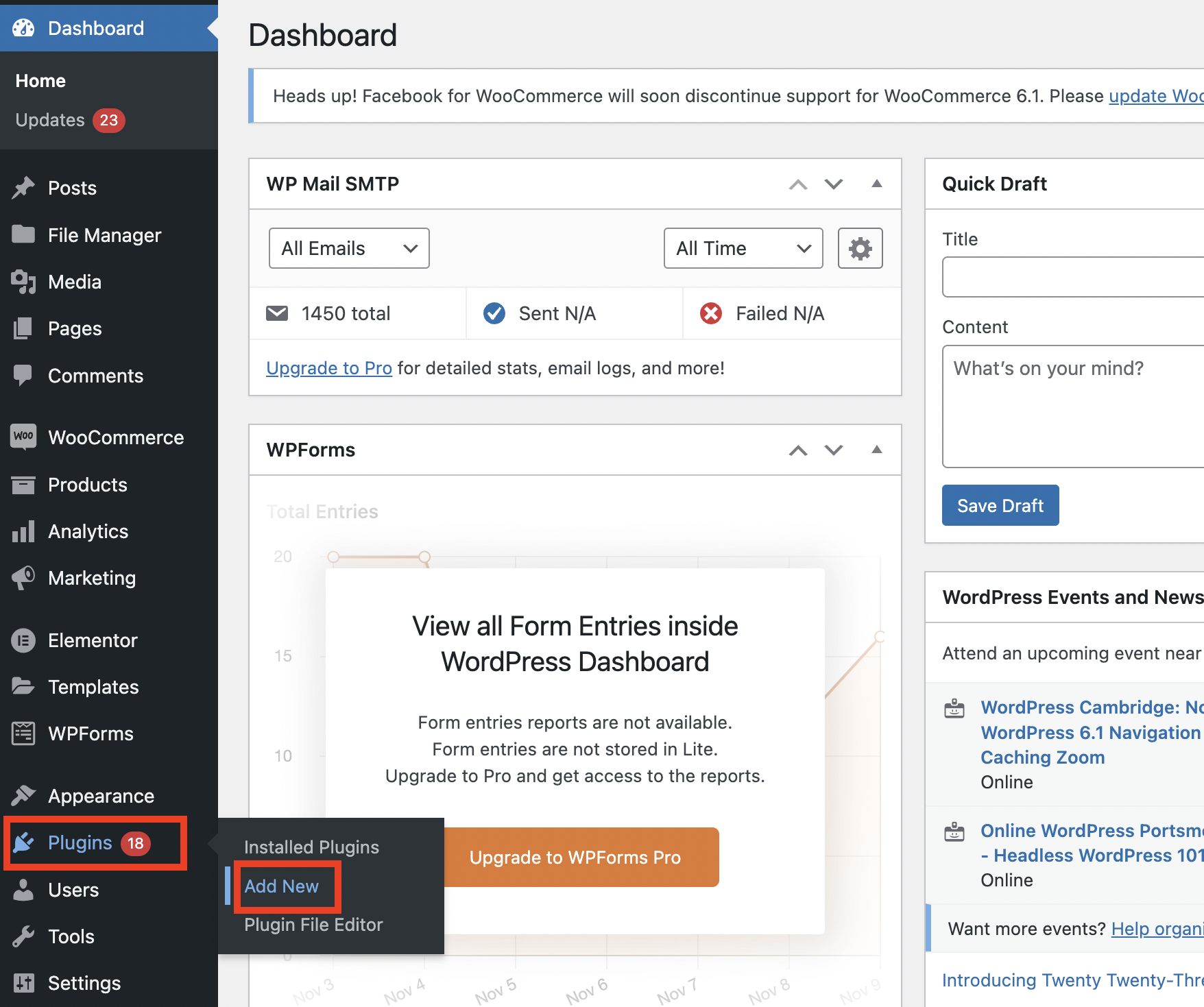
- Click Upload Plugin
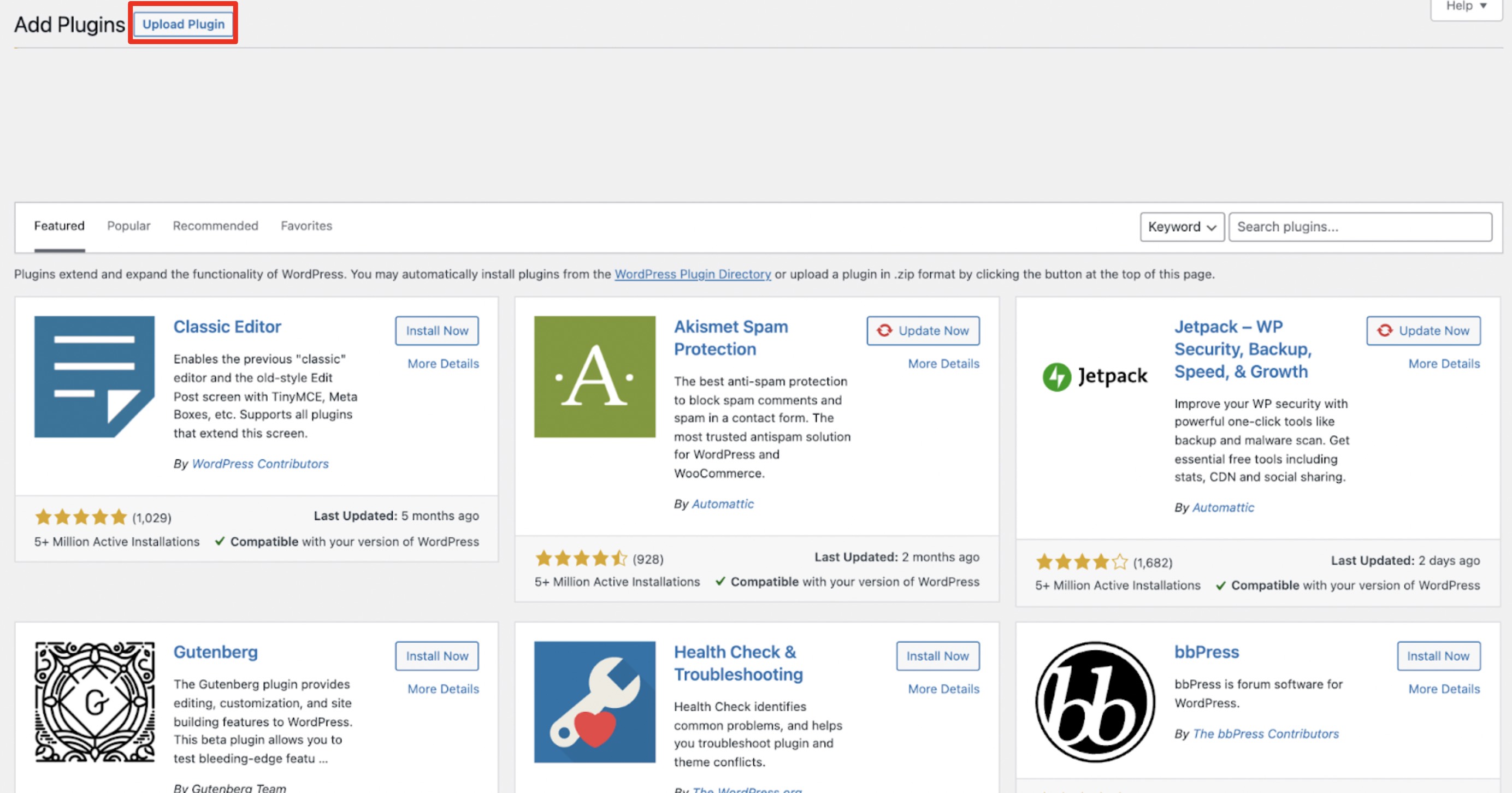
- Select the downloaded ZIP file
- Click Install Now, then Activate
Configuration
Step 1: Enable Two Payment Method
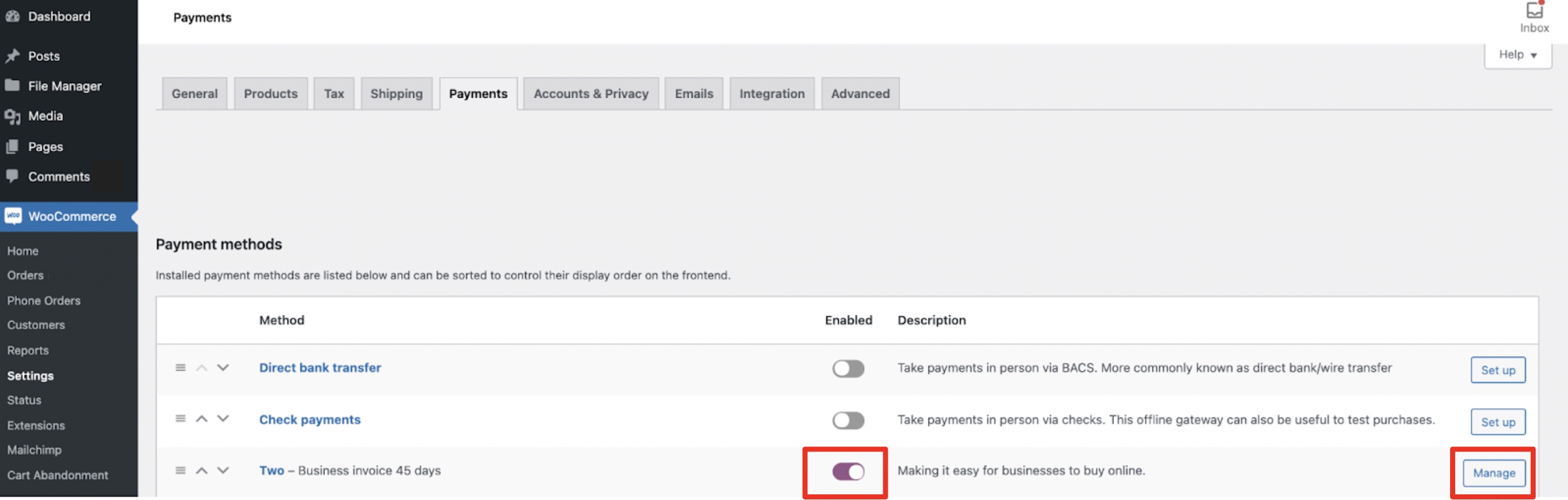
- Navigate to WooCommerce → Settings → Payments
- Find Two in the payment methods list
- Toggle the switch to enable it
- Click Manage to configure
Step 2: Configure Settings
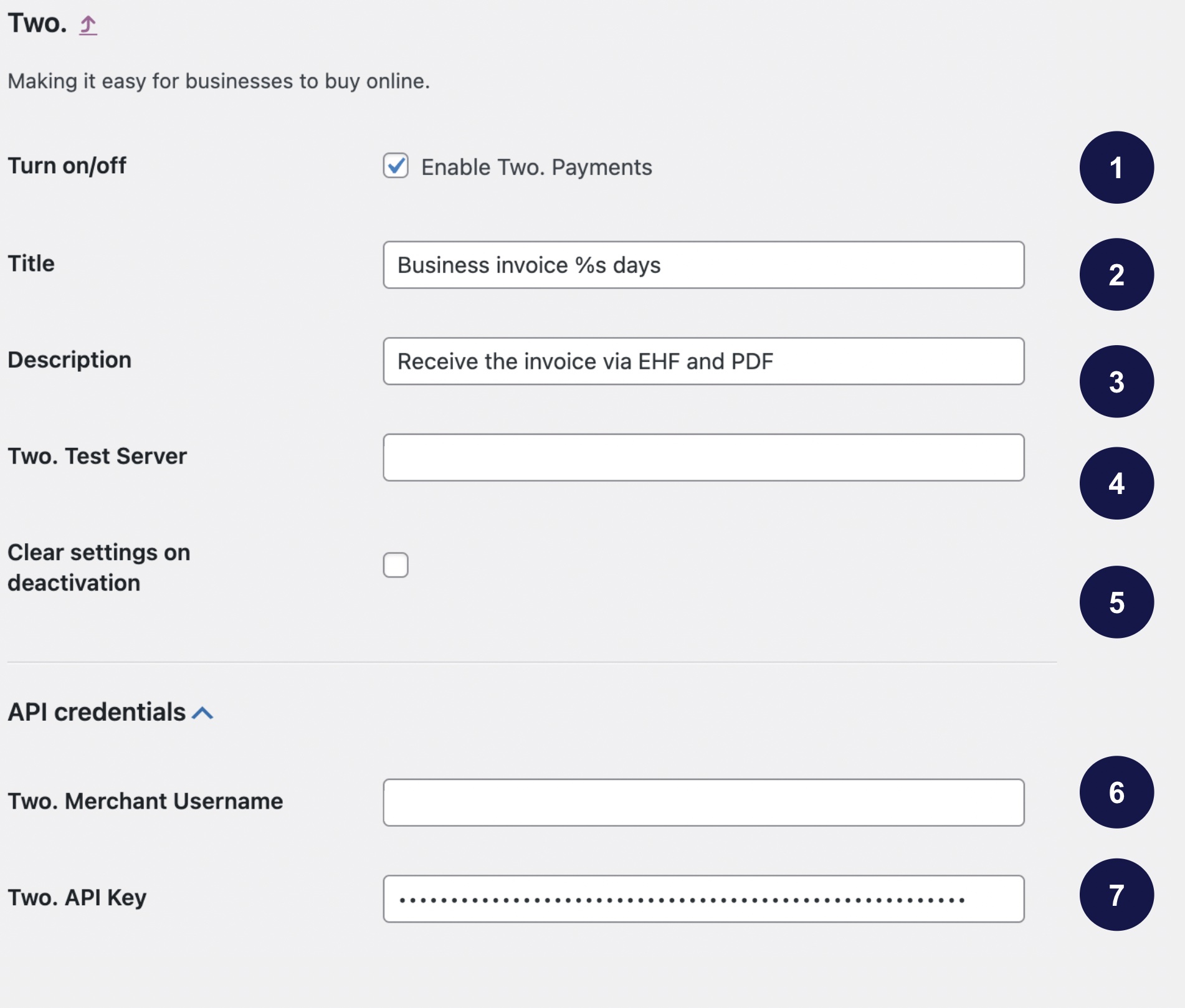
General Settings & API Credentials
| Setting | Description |
|---|---|
| Enable/Disable | Activate Two as a payment option |
| Title | Payment method name shown at checkout |
| Description | Text displayed at checkout |
| API URL | Production: api.two.inc/v1 |
| Clear on deactivate | Clear all settings when deactivating the plugin |
| Username | Your Two username |
| API Key | Your Two API key |
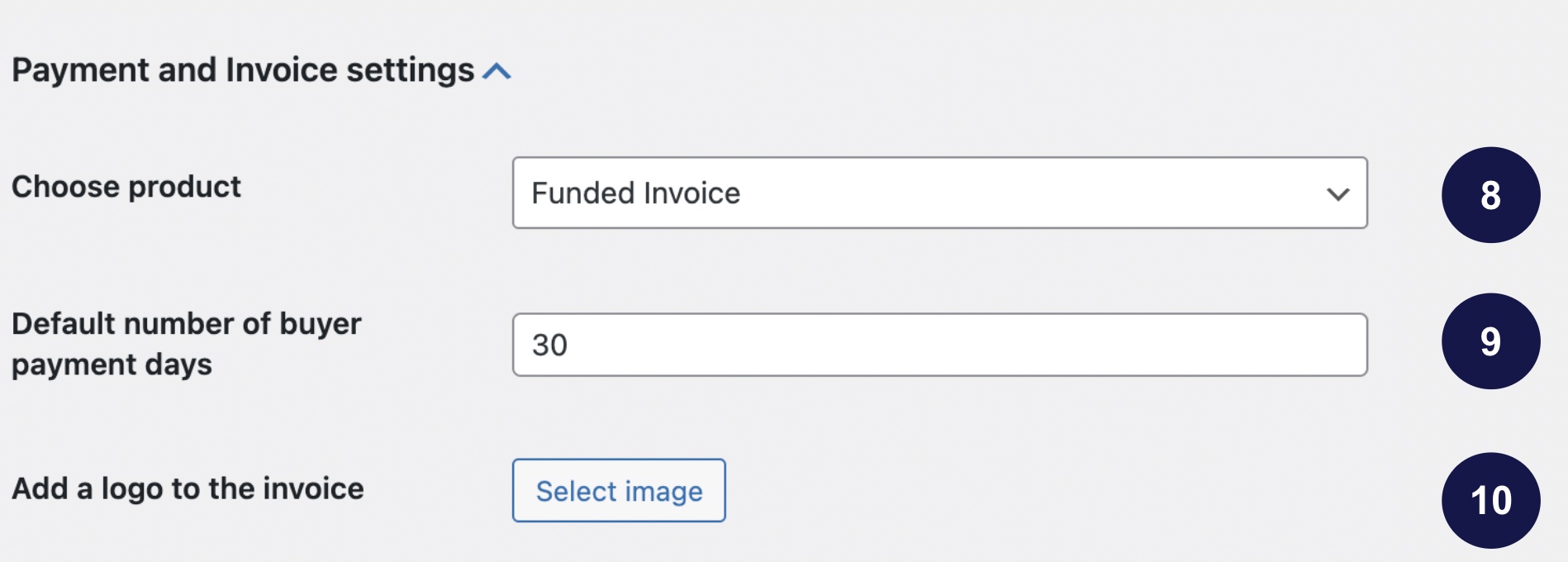
Payment & Invoice Settings
| Setting | Description |
|---|---|
| Invoice type | Select the invoice type agreed with Two |
| Payment days | Number of days for payment (e.g., 14, 30, 45) |
| Company logo | Upload your logo for invoices |
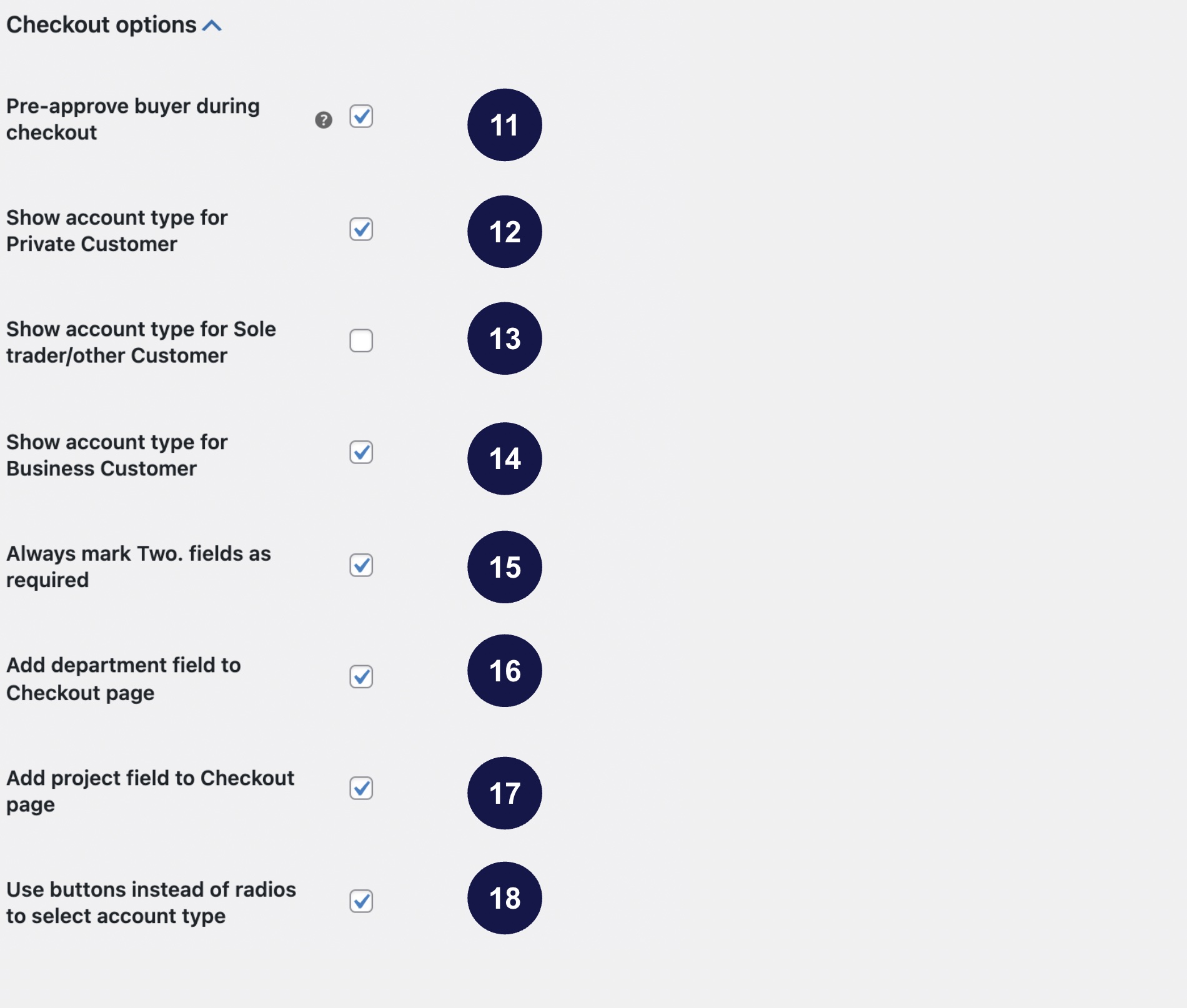
Checkout Options
| Setting | Description |
|---|---|
| Enable credit check | Pre-check buyer eligibility (recommended) |
| Private customers | Allow private customer option |
| Sole trader | Allow sole trader option |
| Business customer | Allow business customer option |
| Required fields | Make all Two-related fields required |
| Department field | Add department input field |
| Project field | Add project input field |
| Use buttons | Replace radio buttons with styled buttons |
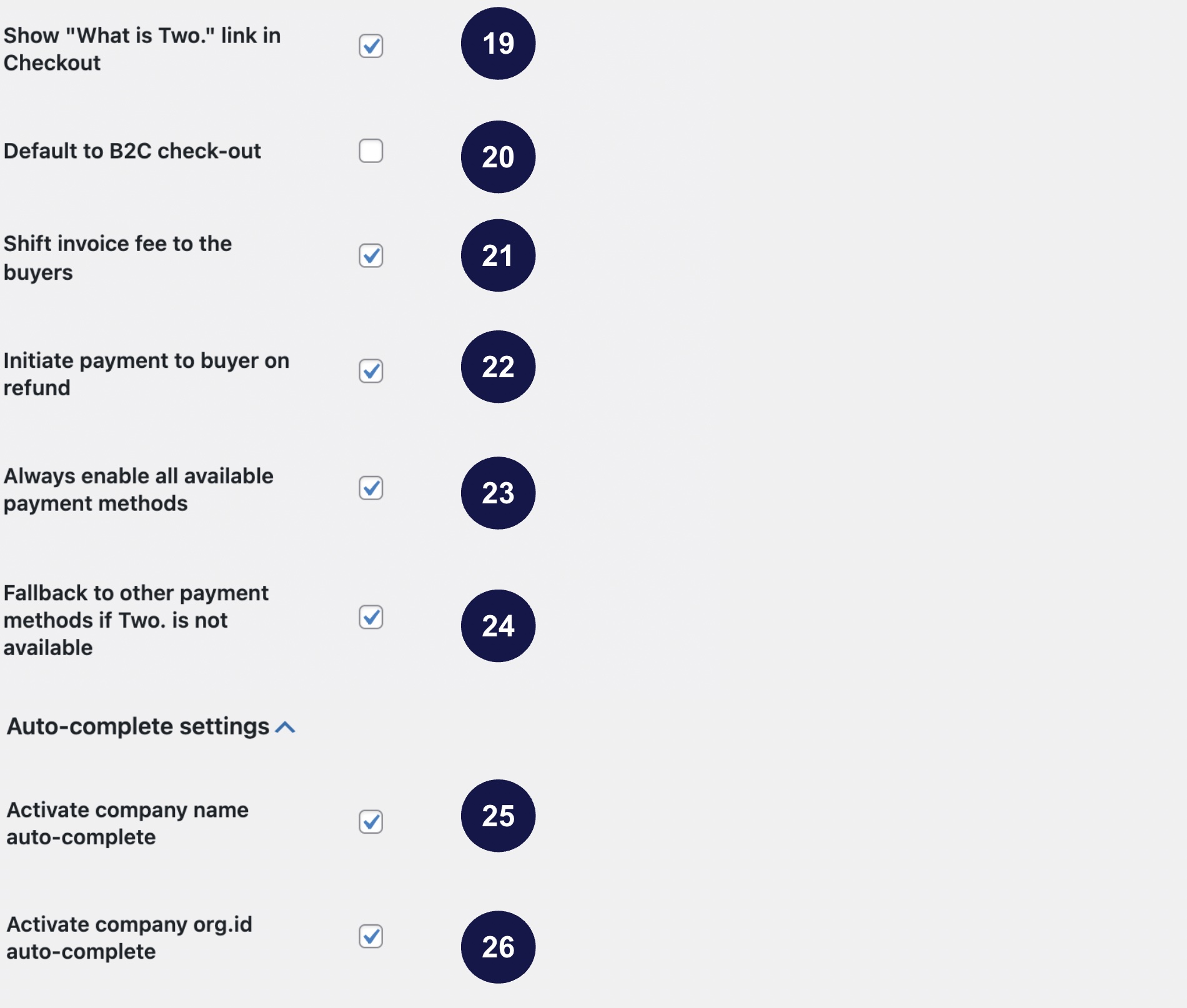
Auto-complete & Additional Options
| Setting | Description |
|---|---|
| About Two link | Link to a page describing Two payment |
| Default to business | Show business checkout by default |
| Flat fee | Charge buyer a flat fee on purchase |
| Initiate refund payment | Auto-initiate payment to buyer on refund |
| Enable other payments | Enable all other payment methods |
| Fallback payment | Enable fallback if Two unavailable |
| Company name search | Auto-complete company names |
| Organisation ID search | Auto-complete organisation numbers |
Click Save Changes when done.
Product Page Settings
Available from plugin version 2.25.0. All are off by default and independent, so you can run either, both or neither.
| Field | Description |
|---|---|
| Show message on product pages | Adds a short line telling the buyer they can pay on invoice with Two |
| Product page message | Optional custom wording for that line. Leave empty for the default |
| Show buy button on product pages | Adds a button beside Add to cart that adds the item and opens checkout with Two preselected where it is available |
It takes the buyer to checkout, where they confirm as usual. It sits beside your theme's Add to cart rather than replacing it, and respects the quantity and any variant the buyer has chosen.
Exactly where it appears depends on your theme.
A product page has no cart, so the button cannot know in advance whether your minimum order value, the buyer's country or the currency will allow Two. When the completed basket does not qualify, checkout opens with nothing selected and the buyer chooses as they normally would.
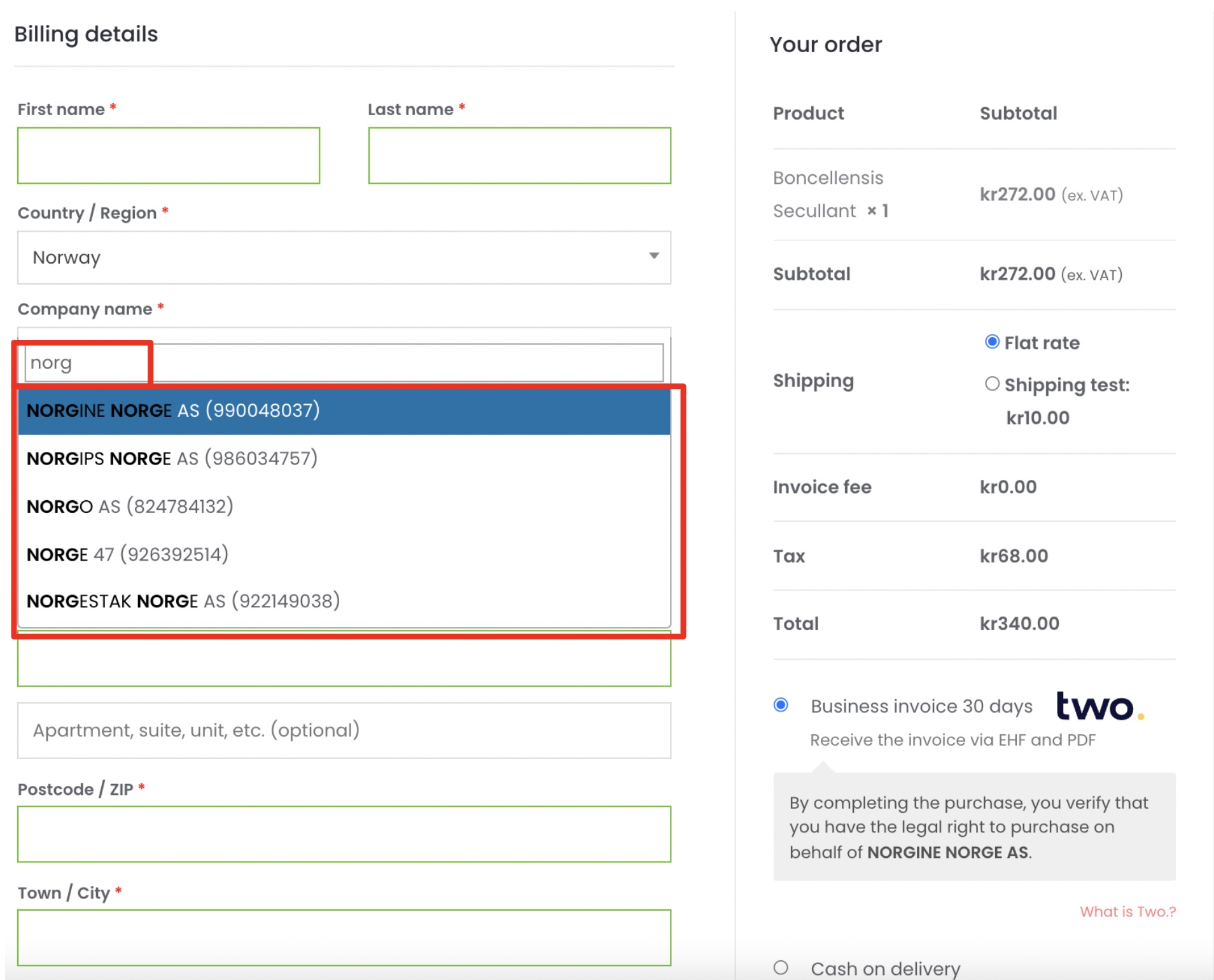
Company Search in Action
When enabled, the company search auto-complete feature helps buyers quickly find their company:
Tax Configuration
Two requires at least one tax rate to be enabled. If you haven't configured taxes, you must do so before offering Two as a payment method.
Configure taxes at WooCommerce → Settings → Tax.
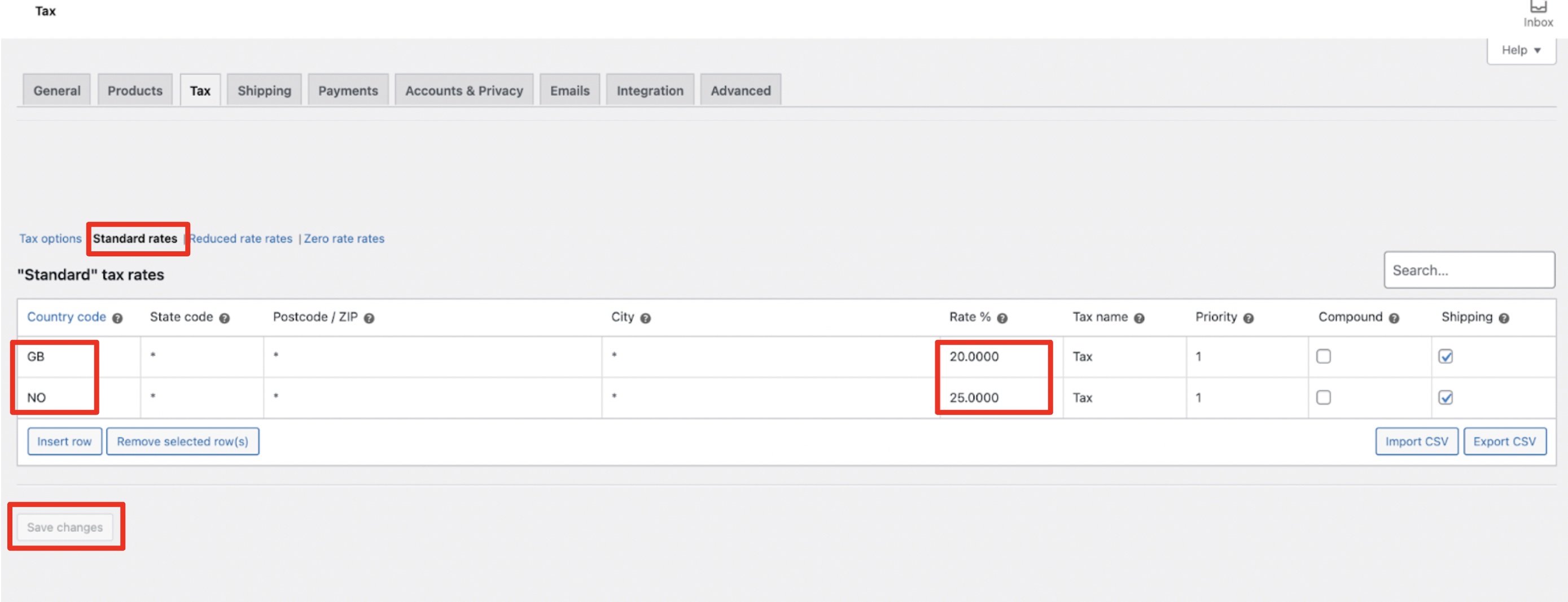
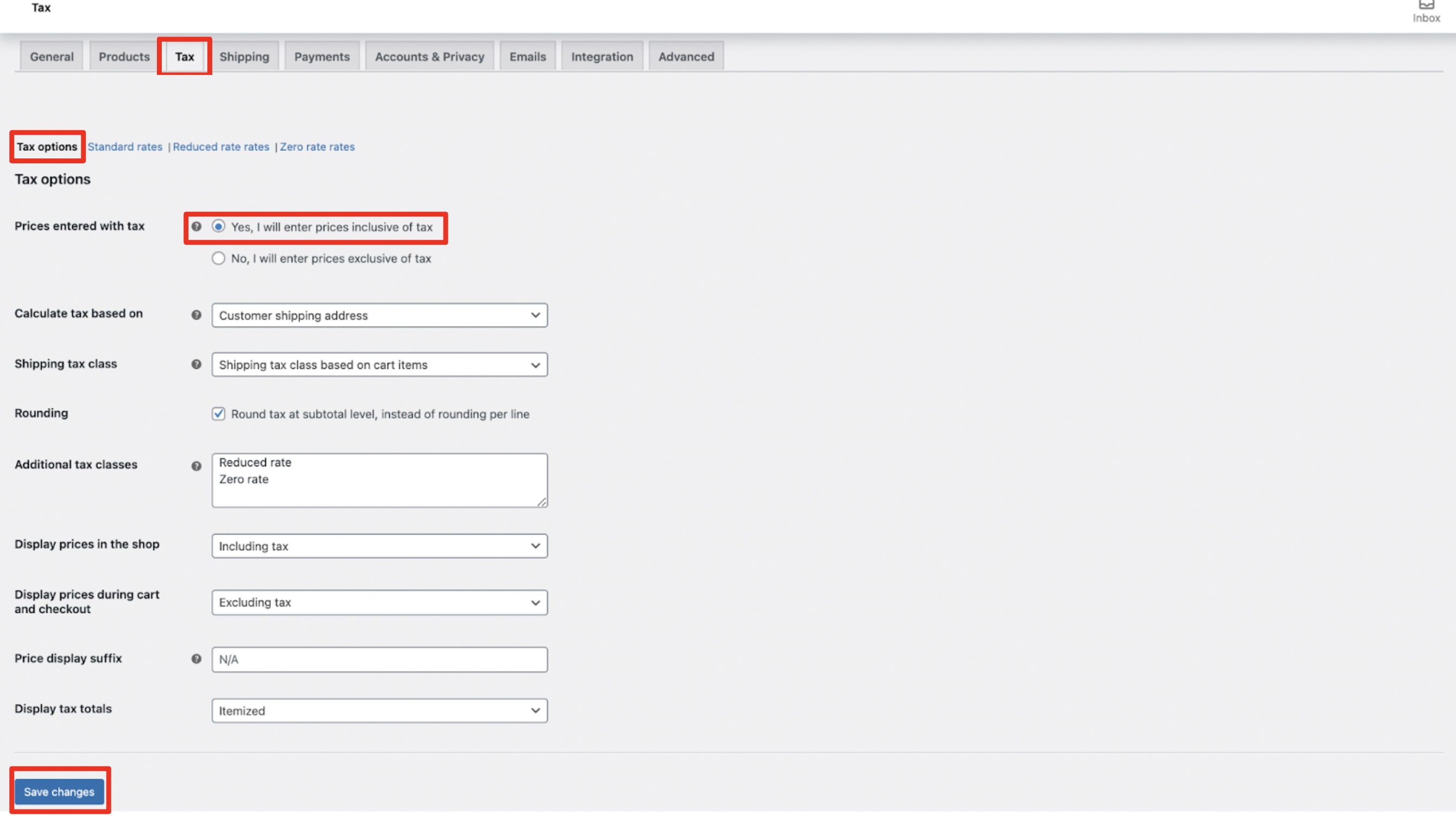
Most merchants will need to configure VAT rates for their region.
Processing Refunds
To refund an order paid with Two:
- Navigate to WooCommerce → Orders
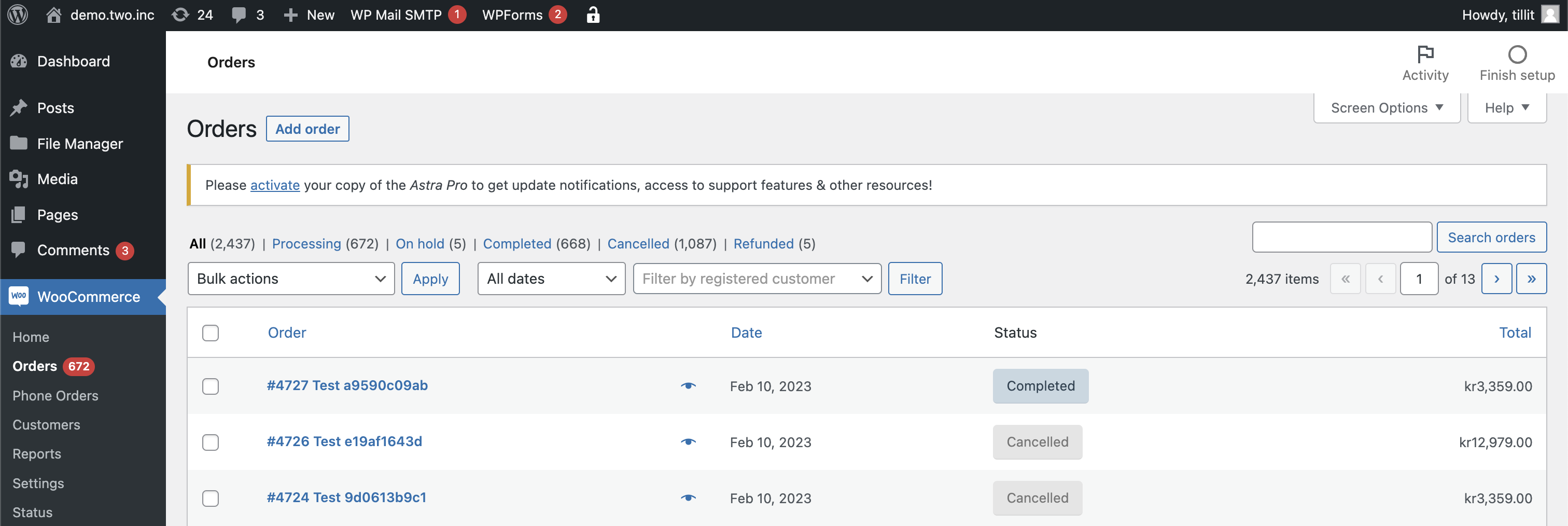
- Select an order with status Completed
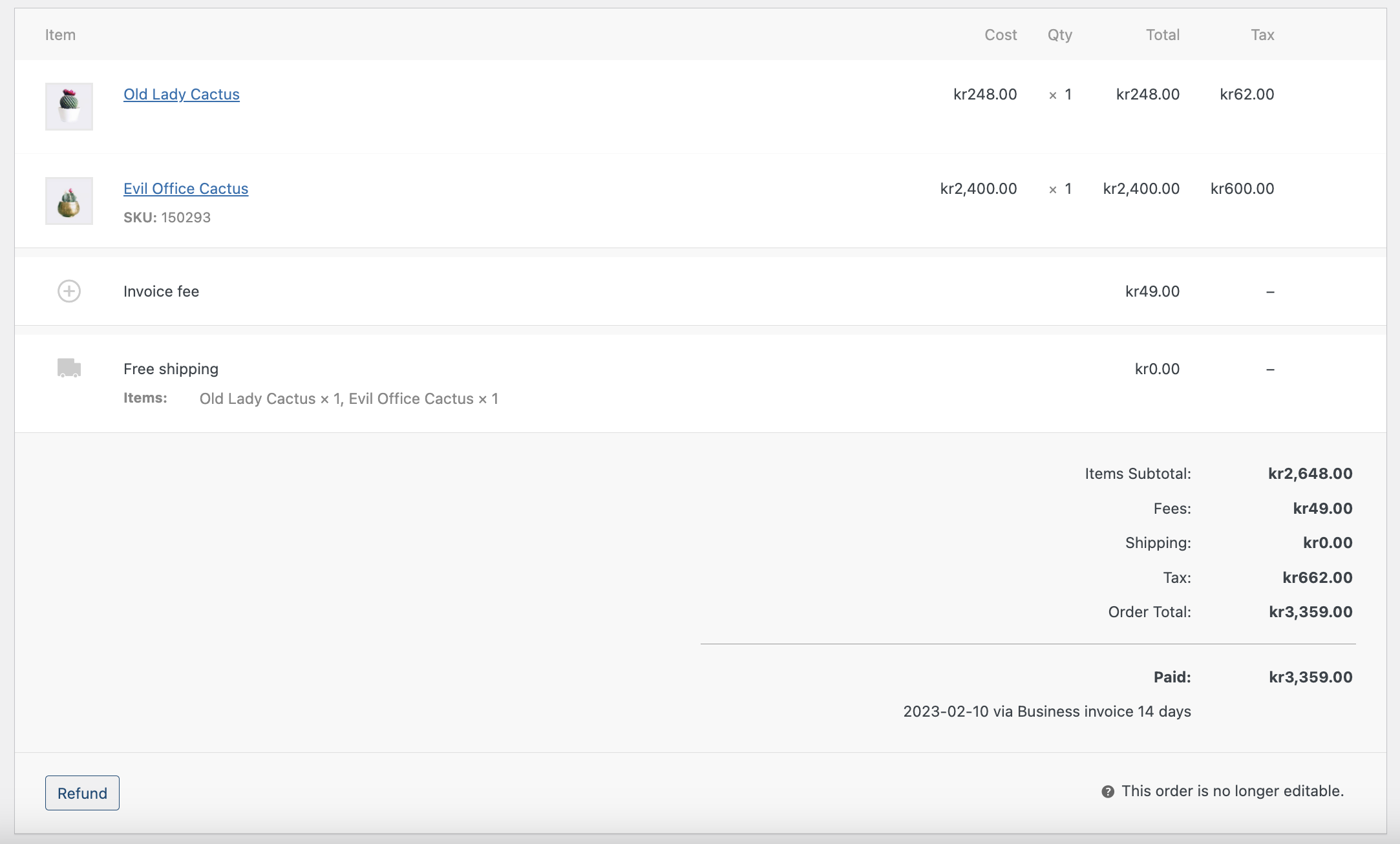
- Scroll down to the order items section
- Click Refund
- Set the quantity for each item to refund
- Click Refund via Two
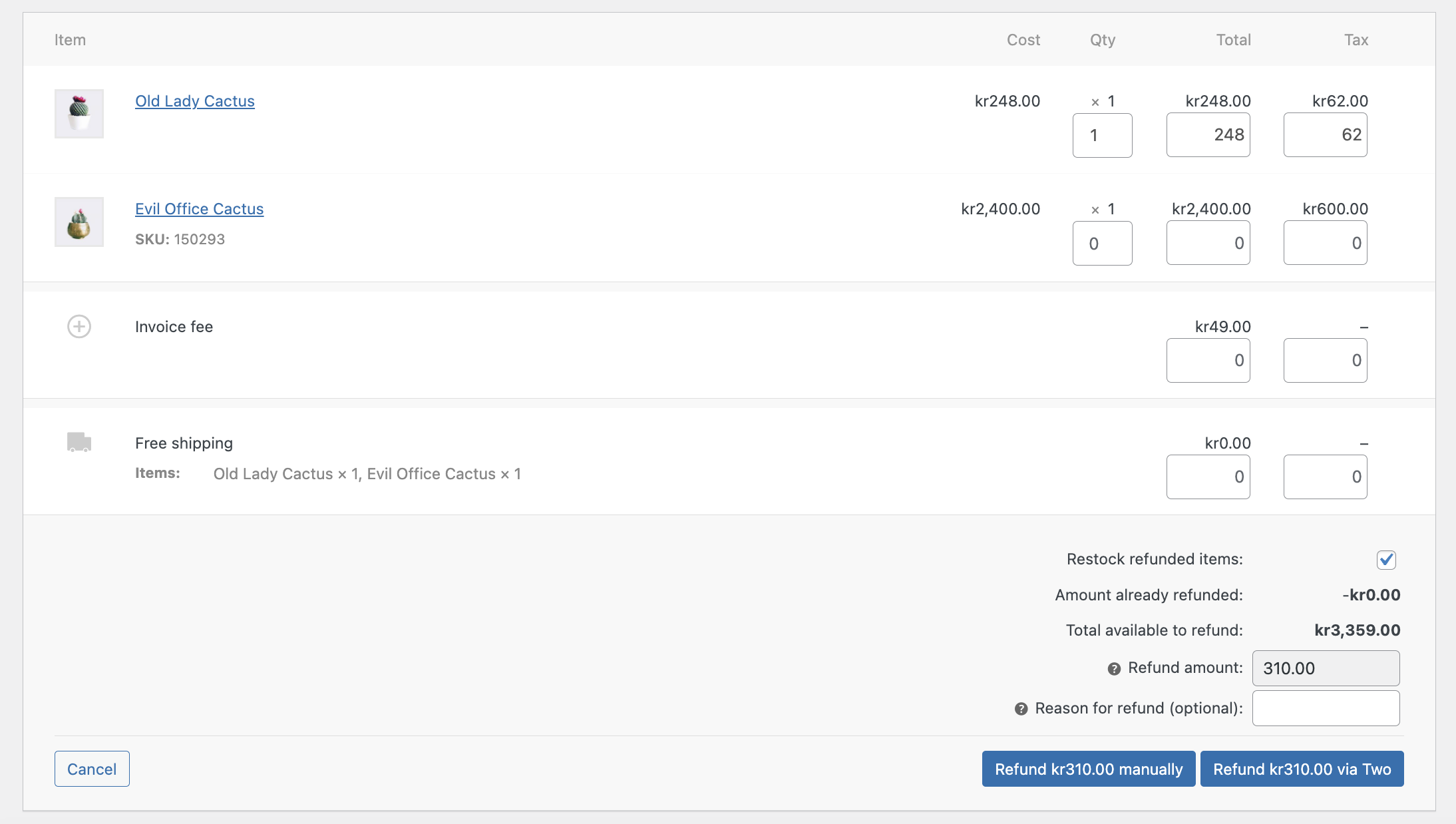
When you click Refund via Two, a confirmation dialog will appear. Once confirmed, this action cannot be undone.
Quick Reference
| Task | Location |
|---|---|
| Enable Two | WooCommerce → Settings → Payments |
| Configure settings | WooCommerce → Settings → Payments → Two → Manage |
| Configure taxes | WooCommerce → Settings → Tax |
| Process refunds | WooCommerce → Orders → [Order] → Refund |
Need Help?
If you have questions or need assistance, please contact our support team.